The Creator Stack used by 75,000+ solopreneurs, coursemakers, and community builders
Sell digital & physical products, courses, communities, memberships, and subscriptions with high-converting checkouts, powerful funnels, and thousands of automations.
 Trustpilot
 G2
G2 Product Hunt
 Capterra
- Embedded courses & social learning
- High-converting checkout & funnels
- Branded community hub
- 100+ Global Payment Methods
Revenue
0
+12.5%
Orders
0
+8.3%
Conversion
0
+1.1%
Revenue processed
$8B+




'%3e%3cpath%20d='M1049.9%20281.526H1187.7V291.369L1105.04%20473.715H1089.69L1171.52%20294.122H1063.58V330.908H1049.9V281.526ZM134.919%20184.097H31.4005V117.782L8.87842%20140.304V281.526H31.4005V195.525H134.919V281.526H157.441V108.523H134.919V184.097ZM266.131%20281.526H377.824V267.929H288.569V195.525H365.144V184.181H288.569V122.12H377.74V108.523H266.131V281.526ZM486.764%20108.523H464.242V281.526H575.935V267.929H486.764V108.523ZM774.129%20267.929H684.958V108.523H662.436V281.526H774.129V267.929ZM865.302%20253.582C872.892%20262.507%20882.485%20269.848%20894.247%20275.687C899.335%20278.189%20904.924%20280.108%20910.93%20281.526L920.773%20271.683C916.852%20270.766%20913.015%20269.514%20909.345%20267.763C900.92%20263.925%20893.663%20258.503%20887.49%20251.58C881.317%20244.657%20876.479%20236.398%20872.892%20226.722C869.389%20217.046%20867.554%20206.536%20867.554%20194.941C867.554%20183.43%20869.306%20172.836%20872.892%20163.16C876.396%20153.484%20881.317%20145.226%20887.49%20138.302C893.663%20131.379%20900.92%20125.957%20909.345%20122.12C917.77%20118.283%20926.862%20116.281%20936.788%20116.281C946.465%20116.281%20955.724%20118.199%20964.315%20122.12C972.991%20125.957%20980.581%20131.379%20987.088%20138.302C993.594%20145.226%20998.766%20153.484%201002.52%20163.16C1005.19%20169.917%201006.86%20177.09%201007.61%20184.765L1026.79%20165.579C1026.79%20165.496%201026.71%20165.412%201026.71%20165.329C1022.96%20154.902%201017.03%20145.226%201009.19%20136.3C1001.27%20127.375%20991.258%20120.034%20979.163%20114.195C967.068%20108.356%20952.804%20105.437%20936.288%20105.437C919.939%20105.437%20906.008%20108.356%20894.247%20114.112C882.569%20119.868%20872.892%20127.208%20865.302%20135.967C857.711%20144.809%20852.122%20154.485%20848.619%20164.995C845.115%20175.505%20843.28%20185.515%20843.28%20194.858C843.28%20204.117%20845.032%20213.96%20848.619%20224.387C852.205%20234.98%20857.711%20244.657%20865.302%20253.582ZM1235.66%207.59077L769.041%20474.132H776.798L1243.42%207.59077H1235.66Z'%20fill='%23FD1729'/%3e%3c/g%3e%3c/svg%3e)









Testimonials
Loved by 75,000+ Creators

Gemma Bonham-Carter
Course Creator School and The Passive Project
"I was considering Kajabi and Kartra platforms, but if I built my house on that platform I'd be paying over $1,800 per year. And when you're starting out you want to bootstrap."

Chris Huntley
Course creator and owner of TheRiseToTheTop.com
"With ThriveCart, it's all incredibly fast and easy. I learned the hard way. And as soon as I moved over to ThriveCart, I've never needed to go back"

Keith E.
Web consultant
"The team got Pro+ setup in under an hour, and we have already seen an increase in AOV from adding an additional order bump."

Dom Wells
CEO and Founder of Onfolio
"I'm getting that 'kid in a candy store' feeling. Hands-down best purchase decision I've ever made. ThriveCart is amazeballs."

Christina
Founder of Passive Income Journeys
"I more than doubled the conversion rate – it was more like 4x or 5xing. Going from a third-party, scammy-looking checkout page to my own branded one really helped."
Gemma Bonham-Carter
Course Creator School and The Passive Project
"I was considering Kajabi and Kartra platforms, but if I built my house on that platform I'd be paying over $1,800 per year. And when you're starting out you want to bootstrap."
Chris Huntley
Course creator and owner of TheRiseToTheTop.com
"With ThriveCart, it's all incredibly fast and easy. I learned the hard way. And as soon as I moved over to ThriveCart, I've never needed to go back"
Keith E.
Web consultant
"The team got Pro+ setup in under an hour, and we have already seen an increase in AOV from adding an additional order bump."
Dom Wells
CEO and Founder of Onfolio
"I'm getting that 'kid in a candy store' feeling. Hands-down best purchase decision I've ever made. ThriveCart is amazeballs."
Christina
Founder of Passive Income Journeys
"I more than doubled the conversion rate – it was more like 4x or 5xing. Going from a third-party, scammy-looking checkout page to my own branded one really helped."

Darrel-Lynne Thieson
Course Creator of OGSoul
"This is a game-changer. The fact it's becoming an all in one makes the price pretty much untouchable for what you're getting."

Michael Ippersiel
Marketing Automations Specialist of MJISolutions
"I'm getting that 'kid in a candy store' feeling. Hands-down best purchase decision I've ever made. ThriveCart is amazeballs."

Matt Wolfe
Youtuber, Entrepreneur & Investor
"I will use ThriveCart in my projects on a daily basis. I've been waiting for something like this for years, and the price is a bargain!"

Barry Goss
Co-Founder & Publisher of M4 Research, LLC
"Over 7 years, I've seen a lot of cart builders, but never one as integrative and feature-rich as ThriveCart. Their staff & support is top grade."

Onder Hassan
Confidence Coach of Tiny Buddha
"You guys are awesome. I've never seen a company go from request to implementation this fast! Keep up with the great work."

Kevin Fielder
YouTube Marketing Coach
"It is so easy to setup a sales page or funnel, checkout and bump order with this software. They have a built-in 'page builder' with all the necessary components."
Darrel-Lynne Thieson
Course Creator of OGSoul
"This is a game-changer. The fact it's becoming an all in one makes the price pretty much untouchable for what you're getting."
Michael Ippersiel
Marketing Automations Specialist of MJISolutions
"I'm getting that 'kid in a candy store' feeling. Hands-down best purchase decision I've ever made. ThriveCart is amazeballs."
Matt Wolfe
Youtuber, Entrepreneur & Investor
"I will use ThriveCart in my projects on a daily basis. I've been waiting for something like this for years, and the price is a bargain!"
Barry Goss
Co-Founder & Publisher of M4 Research, LLC
"Over 7 years, I've seen a lot of cart builders, but never one as integrative and feature-rich as ThriveCart. Their staff & support is top grade."
Onder Hassan
Confidence Coach of Tiny Buddha
"You guys are awesome. I've never seen a company go from request to implementation this fast! Keep up with the great work."
Kevin Fielder
YouTube Marketing Coach
"It is so easy to setup a sales page or funnel, checkout and bump order with this software. They have a built-in 'page builder' with all the necessary components."
Ideas take many shapes. We help transform them into a business
Digital Products
Create scalable digital products from your expertise. Materialise ideas into pdfs, spreadsheets, templates and much more.
- Instant automated delivery
- Expiring download links
- Five flexible fulfilment methods
- Seamless third-party file hosting
- Per-product and per-funnel delivery control
- Print-on-demand and physical delivery built in
The revenue engine
driving sales
Features powering seven & eight-figure creator businesses
Checkout
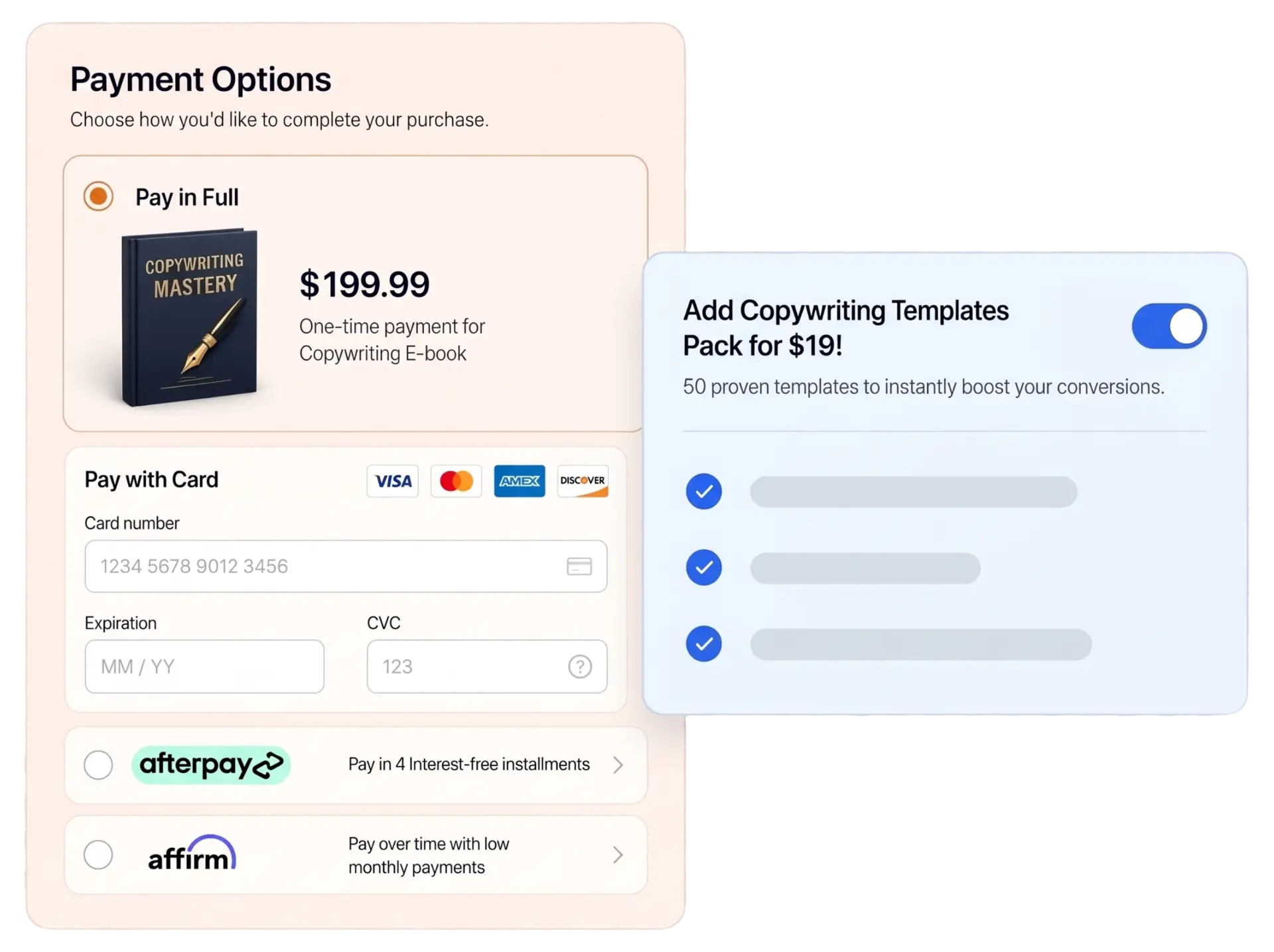
Launch high-converting checkouts
Modal, single-page, or multi-step layouts built to match your brand and lift LTV.


Funnels
Boost revenue with funnels
Set the exact path buyers take. Add multiple bumps, one-click upsells and downsells, pro-rated payments, and automatic access rules.
AOV lift
118%
Average order value increase with an order bump, upsell, and downsell.
Subscriptions
Manage subscriptions with ease
Trials, renewals, upgrades, and cancellations on autopilot.
Affiliates
Recruit & onboard affiliates
Automated revenue splits, payouts, and JV contracts.
Coupons
Promote in seconds
Boost acquisition with special offers and coupon codes.
A/B Testing
Split test checkout pages or funnels
Compare layouts, offers, and flows side by side.
Taxes
Sales tax automated
Automated tax calculation and collection wherever you sell, and tax-inclusive pricing.
Compliance
Stay compliant globally
PCI-DSS, GDPR, Right of Withdrawal, and much more built-in for day one.
BNPL
Buy Now, Pay Later
Offer Afterpay, Klarna and Affirm or ThrivePay Installments to convert high-ticket buyers.
Multi-currency
Sell in any currency
Sell globally in multiple currencies for a seamless checkout experience.
Checkout
Launch high-converting checkouts
Modal, single-page, or multi-step layouts built to match your brand and lift LTV.
Funnels
Boost revenue with funnels
Set the exact path buyers take. Add multiple bumps, one-click upsells and downsells, pro-rated payments, and automatic access rules.
AOV lift
118%
Average order value increase with an order bump, upsell, and downsell.
Subscriptions
Manage subscriptions with ease
Trials, renewals, upgrades, and cancellations on autopilot.
Affiliates
Recruit & onboard affiliates
Automated revenue splits, payouts, and JV contracts.
Coupons
Promote in seconds
Boost acquisition with special offers and coupon codes.
A/B Testing
Split test checkout pages or funnels
Compare layouts, offers, and flows side by side.
Taxes
Sales tax automated
Automated tax calculation and collection wherever you sell, and tax-inclusive pricing.
Compliance
Stay compliant globally
PCI-DSS, GDPR, Right of Withdrawal, and much more built-in for day one.
BNPL
Buy Now, Pay Later
Offer Afterpay, Klarna and Affirm or ThrivePay Installments to convert high-ticket buyers.
Multi-currency
Sell in any currency
Sell globally in multiple currencies for a seamless checkout experience.
Integrations
Works With Your Existing Stack
 Stripe
 PayPal
 ActiveCampaign
 ConvertKit
 Zapier
 Mailchimp
 DripStripePayPalActiveCampaignConvertKitZapierMailchimpDrip
 HubSpot
 GetResponse
 Webhooks
 AWeber
 Infusionsoft
 Kajabi
 TeachableHubSpotGetResponseWebhooksAWeberInfusionsoftKajabiTeachable
PricingOur pricing plans
Change your plan whenever you want. Every plan comes with ThriveCart Academy, our community platform.Whether you're just starting out, are looking to upgrade, or want a custom plan, we've got an offer for you. Buy ThriveCart with or without advanced offerings, or upgrade anytime after. Each ThriveCart monthly license gives access to a ThriveCart Academy plan.
ThriveCart Standard
Great to get started
Checkout & Cart
- Customized Cart and Checkout Pages
- Checkout in 100+ Countries
Sales & Funnels
- Unlimited Products & Funnels
- 1 Bump Offer
- 1-Click Upsells & Down Sells
- Advanced Funnel Automation
- A/B Split Testing
- Abandon Cart Recovery
- Sales Tax Automation
- Advanced Adaptive Pricing (Stripe Connect+/PayPal Enhanced)
- ThrivePages
Advanced Subscriptions
- Anchored Subscription Billing
Payments & Billing
- Integrations with Payment Processors
- Buy Now Pay Later, Split Pay, Pay-As-You-Like & Subscription Billing
ThriveCart Academy Starter Plan
- Unlimited Courses/Students
- Up to 2,000 Community Members
- Up to 10 Communities
- Student Homepage
- Course Bundles
- Gamification/Quizzes/Certificates
- 100 GB Video Storage
- 2 GB Max File Size per Video
- HD Streaming (1080p) and More..
Integrations
- 100+ Direct Integrations
ThriveCart Pro+
Scale without limits
Includes everything on Standard, plus:
Revenue Optimization
- Pro+ Sales & Reporting Tools
- Multiple Order Bumps (↑ 30% AOV increase)
- Crypto Payments (↑ 7% AOV increase)
- Tax Inclusive Pricing (↑ 22% sales increase)
- Sales Tax Automation
- QR Codes
- Coupons Offers & Analytics
- UTM Tracking
Advanced Subscriptions
- Subscription 1-Click Upgrades & Downgrades
- Subscription Dunning
- Subscription Analytics & Funnel Comparisons
- Subscription Bumps (Stripe Connect+)
- Retention Offers (Stripe Connect+)
Affiliates & Partnerships
- Affiliate Center & Automated Payouts
- Joint Venture Contracts
Customization & Admin
- Custom Branding & Domains
- Multi-user Permissions
- Business Intelligence Reporting
ThriveCart Academy Growth Plan
- (Includes everything on Starter plan, plus:)
- Up to 10,000 Community Members
- Unlimited Communities
- Custom Domain (Account, Course & Community)
- 500 GB Video Storage
- 4 GB Max File Size per Video
- HD Streaming (1080p) and More..
ThriveCart Enterprise
For high-volume sellers
Includes everything on Pro+, plus:
VIP Service
- Tailored implementation & onboarding
- White-Glove Setup
- Dedicated Account Manager
- Platform Migration
- Priority Support & Fast Response
- Quarterly Strategy Reviews
Enterprise Scale
- Volume-Based Processing Rates
- Unlimited Team Seats
- Multi-Brand & Marketplace Support
- Custom API & Integration Support
- Headless for Platforms
Advanced Control
- Enterprise SLAs
- Advanced Security & Compliance
- Custom Contract Terms
ThriveCart Academy Scale Plan
- (Includes everything on Growth plan, plus:)
- Unlimited Community Members
- Unlimited Communities
- Multi Branded Communities
- White-Label Branding
- Unlimited Video Storage
- 10 GB Max File Size per Video
- 4K Streaming
- Team and Multi-Admin Access
- Custom Domains & More
ThriveCart Standard
Great to get started
Checkout & Cart
- Customized Cart and Checkout Pages
- Checkout in 100+ Countries
Sales & Funnels
- Unlimited Products & Funnels
- 1 Bump Offer
- 1-Click Upsells & Down Sells
- Advanced Funnel Automation
- A/B Split Testing
- Abandon Cart Recovery
- Sales Tax Automation
- Advanced Adaptive Pricing (Stripe Connect+/PayPal Enhanced)
- ThrivePages
Advanced Subscriptions
- Anchored Subscription Billing
Payments & Billing
- Integrations with Payment Processors
- Buy Now Pay Later, Split Pay, Pay-As-You-Like & Subscription Billing
ThriveCart Academy Starter Plan
- Unlimited Courses/Students
- Up to 2,000 Community Members
- Up to 10 Communities
- Student Homepage
- Course Bundles
- Gamification/Quizzes/Certificates
- 100 GB Video Storage
- 2 GB Max File Size per Video
- HD Streaming (1080p) and More..
Integrations
- 100+ Direct Integrations
ThriveCart Pro+
Scale without limits
Includes everything on Standard, plus:
Revenue Optimization
- Pro+ Sales & Reporting Tools
- Multiple Order Bumps (↑ 30% AOV increase)
- Crypto Payments (↑ 7% AOV increase)
- Tax Inclusive Pricing (↑ 22% sales increase)
- Sales Tax Automation
- QR Codes
- Coupons Offers & Analytics
- UTM Tracking
Advanced Subscriptions
- Subscription 1-Click Upgrades & Downgrades
- Subscription Dunning
- Subscription Analytics & Funnel Comparisons
- Subscription Bumps (Stripe Connect+)
- Retention Offers (Stripe Connect+)
Affiliates & Partnerships
- Affiliate Center & Automated Payouts
- Joint Venture Contracts
Customization & Admin
- Custom Branding & Domains
- Multi-user Permissions
- Business Intelligence Reporting
ThriveCart Academy Growth Plan
- (Includes everything on Starter plan, plus:)
- Up to 10,000 Community Members
- Unlimited Communities
- Custom Domain (Account, Course & Community)
- 500 GB Video Storage
- 4 GB Max File Size per Video
- HD Streaming (1080p) and More..
ThriveCart Enterprise
For high-volume sellers
Includes everything on Pro+, plus:
VIP Service
- Tailored implementation & onboarding
- White-Glove Setup
- Dedicated Account Manager
- Platform Migration
- Priority Support & Fast Response
- Quarterly Strategy Reviews
Enterprise Scale
- Volume-Based Processing Rates
- Unlimited Team Seats
- Multi-Brand & Marketplace Support
- Custom API & Integration Support
- Headless for Platforms
Advanced Control
- Enterprise SLAs
- Advanced Security & Compliance
- Custom Contract Terms
ThriveCart Academy Scale Plan
- (Includes everything on Growth plan, plus:)
- Unlimited Community Members
- Unlimited Communities
- Multi Branded Communities
- White-Label Branding
- Unlimited Video Storage
- 10 GB Max File Size per Video
- 4K Streaming
- Team and Multi-Admin Access
- Custom Domains & More
Ready to commit for life? Available as a lifetime option. Get Started.
Frequently Asked Questions
Still looking for answers? or visit our blog for updates on newest features and integrations!