
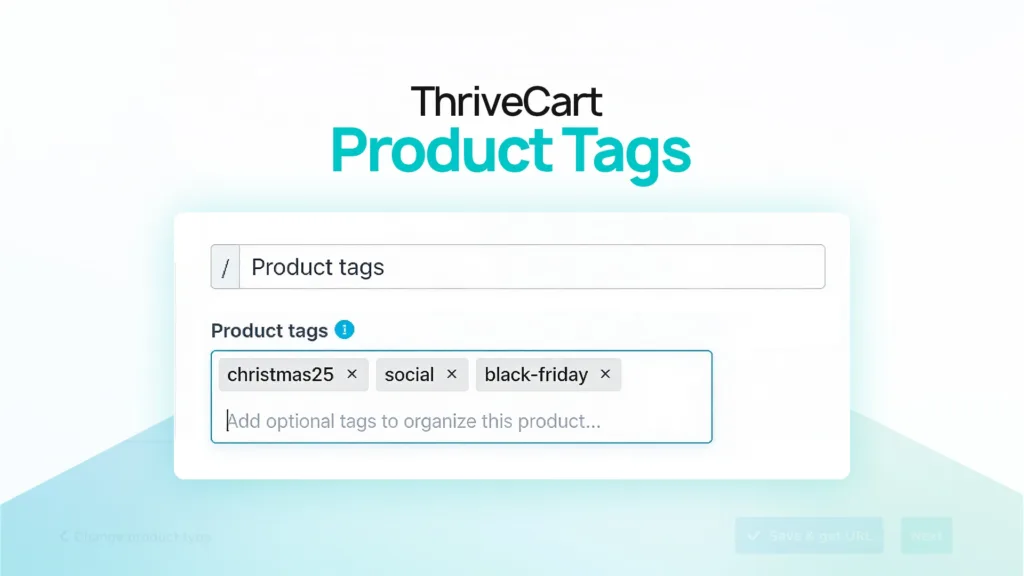
Ever found yourself scrolling endlessly through your product list trying to remember which offers were part of your Black Friday campaign? Or wishing you could instantly analyze how all your VIP tier products performed regardless of whether they’re main products, bumps, or upsells? Or perhaps you need to know if ebooks performed better than courses in your New Year campaign?
When you’re managing dozens of products across the funnel, finding and analyzing the right ones can feel like searching for a needle in a haystack.
That’s why we built product tags – a complete system for organizing, filtering, and analyzing your entire ThriveCart product catalog the way you actually think about your business.
Product tags are now available for all ThriveCart Pro+ users.
Why we built product tags
You told us you needed a better way to organize products. Not just your main products – all your products. The bumps, upsells, and downsells that make up your funnels and campaigns.
You needed to answer questions like:
- “Which products were part of my Black Friday campaign?”
- “How did all my coaching offers perform last quarter?”
- “What’s the total revenue from my spring launch across every funnel?”
Answering these questions used to require opening dozens of products, keeping external spreadsheets, or manually tracking campaigns.
Not anymore.
How product tags work
Tag any product anywhere
Add tags to main products, bumps, upsells, and downsells – all from the product settings you already know.
To add tags:
- Open any product and go to Edit → Options
- Find the new Product tags field
- Type a tag name and press Enter or add a comma to confirm it
- Add as many tags as you need – they’ll autocomplete from existing tags to keep everything consistent
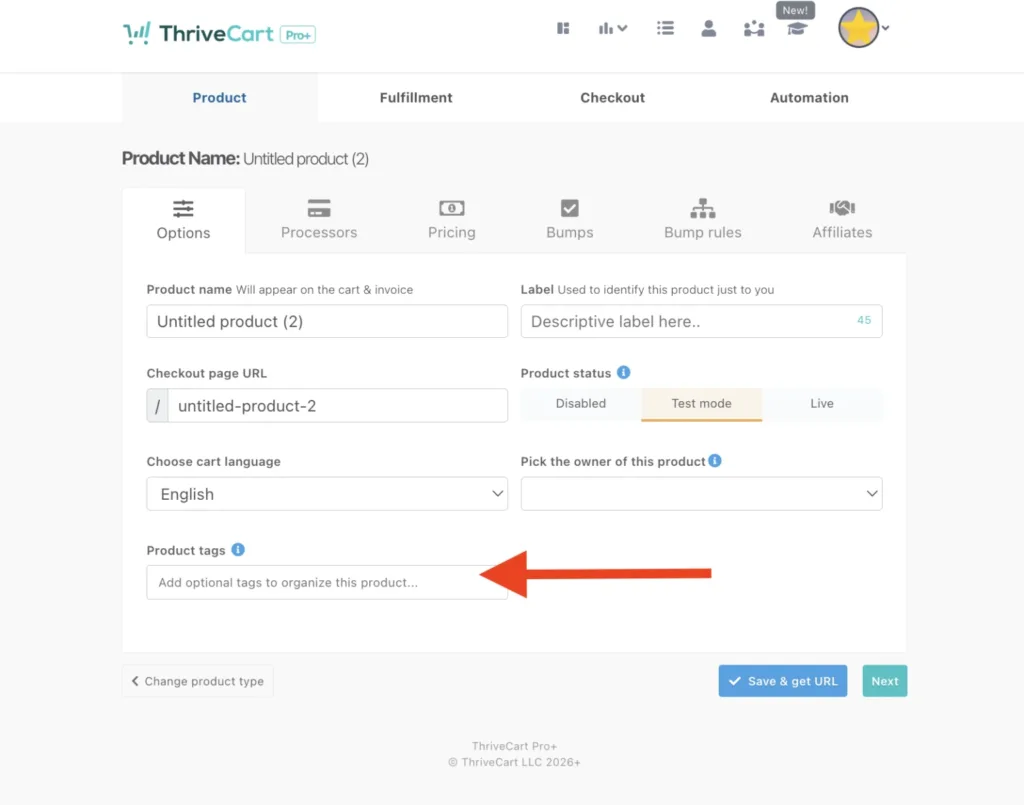
Tag naming: Use numbers, letters, and hyphens – special characters aren’t supported. Tags are case-insensitive, so “Black-Friday” and “black-friday” are treated as the same tag.
Made a mistake? Just click the X on any tag chip to remove it.
Common tagging strategies:
- Campaign tracking: “black-friday-2026”, “spring-launch”, “webinar-promo”
- Product categories: “digital-courses”, “coaching”, “memberships”
- Business verticals: “b2b-services”, “beginner-level”, “premium-tier”
- Seasonal groupings: “holiday-2026”, “summer-sale”, “q4-offers”
See tags at a glance
Once you save your product, tags appear as clean visual badges directly on your product list, right below the product name.
At a glance, you can see exactly which products belong to which campaigns, categories, or funnels without opening a single settings panel. No more guessing. No more clicking into dozens of products to find what you need.
Tags appear consistently across your main tabs for products, upsells, and downsells, so you always know what you’re looking at.
Filter your product lists instantly
Need to find a specific group of products fast? Use the new Filter by tags field next to the Recently Added dropdown on your Products, Upsells, and Downsells pages.
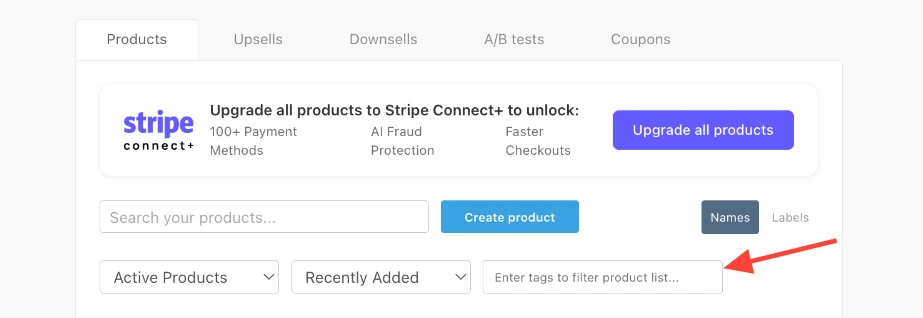
Select one or more tags, and your list instantly updates to show all matching products. Tag filtering uses OR logic, meaning if you select multiple tags, products with any of those tags will appear – making it easy to broaden your view.
Pro tip: Combine tag filtering with the existing text search to narrow down your results even further. Tag filtering establishes your initial product pool, then text search refines it.
Filter transactions by product tags
Here’s where product tags become truly powerful for your business operations. Head to your Transactions page and you’ll see a new option in the dropdown: Product tags.
Select it, choose your tags, and instantly see every transaction tied to those products – across all product types, main products, bumps, upsells, and downsells – all in one unified view.
Two viewing modes:
- Default: See only transactions for the specifically tagged products
- Include all order transactions (toggle on): See complete orders where any product matches your selected tags
The game-changer: This works retroactively. Even if you just started using tags today, transactions from before you applied tags will still appear in your filtered results. You get complete historical visibility without any data migration.
Export your filtered data: CSV exports automatically honor your tag filtering, so you can analyze campaign performance in your favorite spreadsheet or accounting tool.
Analyze performance across related products
If you’re using Stripe Connect+, this is where Product Tags transform how you understand your business.
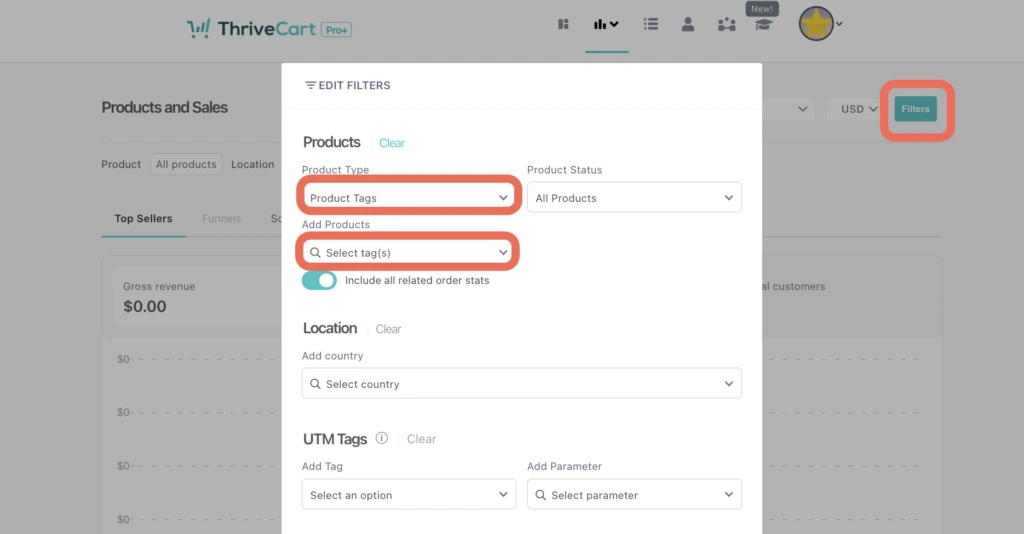
Your Product & Sales, Subscriptions, and Funnels reports now support tag-based filtering:
- Open Filters on any report page
- Set Product Type to Product Tags
- Choose your tags
- Watch your entire reporting view update to show aggregated performance across every product in that group
Why this matters: Instead of selecting products individually, you can now see consolidated reporting for entire campaigns, product categories, or business verticals – regardless of whether products are main offers, bumps, upsells, or downsells.
The “Include all related order stats” toggle lets you include revenue from complete orders where any product matches your tag criteria, not just the tagged product revenue.
Real-world use cases: how you’ll actually use this
📊 Campaign ROI analysis
Tag all products in your Q2 launch as “q2-launch-2026” and instantly see total campaign performance across every funnel, upsell, and bump – without building a single spreadsheet.
📦 Product category performance
Separate your digital courses from your coaching programs with tags like “digital-course” and “coaching”, then analyze which business line drives more revenue, conversions, and lifetime value.
🎄 Seasonal performance comparison
Tag products with “holiday-2025” and “holiday-2026” to compare year-over-year performance and optimize your seasonal strategy based on real data.
🎯 Business vertical profitability
If you serve multiple markets (B2B vs. B2C, beginners vs. advanced, services vs. products), tag accordingly and discover which vertical deserves more focus and resources.
🔄 Funnel component analysis
Tag related products across different funnels with something like “webinar-funnel” to see total performance regardless of where the products sit in your checkout flow.
Built for flexibility, designed for growth
We built product tags because rigid categorization systems don’t work for real businesses. You need a system that:
✅ Adapts to your exact business model – not someone else’s predetermined categories
✅ Works retroactively – so your existing product library benefits immediately
✅ Scales with you – from 10 products to 100+, without breaking down
✅ Integrates everywhere – product lists, transactions, and reporting all work together
✅ Saves you tons of time – find products in seconds, not minutes
Whether you run simple funnels or complex multi-product campaigns, product tags give you the organizational power to manage it all.
Getting started with product tags
Product tags are available now for all ThriveCart Pro+ accounts.
- Log in to your ThriveCart dashboard
- Open any product and go to Edit → Options
- Start adding tags in the “Product tags” field
- Save your product and watch tags appear in your product lists
- Use the filter fields to find products instantly
- Analyze performance in Transactions and Reports (requires Stripe Connect+ for reporting)
Not on Pro+ yet? Upgrade your account to unlock product tags along with all our advanced features.

Your product catalog has grown. Your tools should keep up
Product tags transform product management from tedious manual tracking to intelligent, automated organization.
Organize products your way. Filter lists in seconds. Analyze campaigns effortlessly. Focus on growing your business instead of hunting through product lists.
Ready to get organized? Your product tags are waiting in your ThriveCart dashboard.
Questions about Product Tags? Our support team is here to help you get the most out of this feature. Get in touch or check out our support article.
Product Tags is available for ThriveCart Pro+ accounts. Reporting features require Stripe Connect+ in addition to Pro+. Check out our support article on setting up Stripe Connect+.
That’s What’s New… What’s Next?
ThriveCart is home to more than 75K+ creators and our more advanced product offering, Pro+, now supports over 41,000 merchants. It’s our latest product release aimed at giving you and your business the greatest functionalities and capabilities in the industry. New features and updates will come thick and fast, so make sure you sign up to our mailing list and join our Facebook Community for the latest developments.
Not yet a Pro+ customer?
Click here to upgrade.
Already a Pro+ customer?
Please note that as a Pro+ user, you won’t be able to take full advantage of the sales revenue-generating and advanced reporting features if you haven’t configured your existing products with Stripe Connect+ and enabled it on your products. Click here to learn how to configure Stripe Connect+ in less than 5 minutes.


