
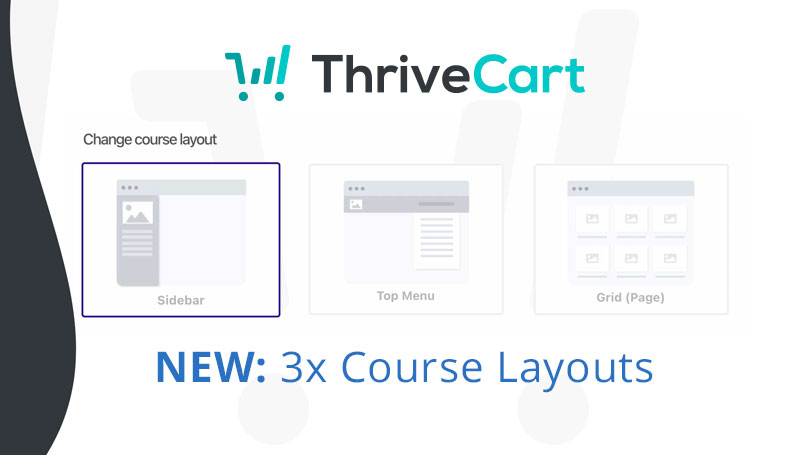

Today, we’re delighted to announce a major update to Learn with the release of three beautiful new templates for your Learn courses.
These new templates give you an amazing foundation to build from to make your course content more engaging and more appealing than ever!
Additionally, on top of the 3 feature-rich templates, we’ve also included in this update:
- The ability to easily preview your courses from your dashboard (no need to have your own student login anymore).
- Thumbnail support for modules and lessons – giving a more personalised feel.
- Completed lesson indicators – so your students can easily see the lessons they’ve already completed.
- New ‘download’ widget in the lesson editor so you can easily add a stylised section into your lesson that links to your downloadable lesson content.
- Plus, a whole range of new customization options.
So let’s take a look at the new layouts, and remember these are fully customisable with your own colour schemes, fonts, images, and sizing!
The ‘SideBar’ layout
Kickstarting this update, we’ve got the revamped and modern version of the standard style course layout with your sidebar of modules and lessons and the lesson content.
A traditional looking course layout, with full customization over how all elements look and the ability to create your own colour schemes for your course.
The ‘Top Menu’ layout
Where content is key and your students focus is on your lesson content only!
This layout looks to move that sidebar navigation up into the header with a dropdown menu showing a list of all the modules and lessons.
This neatly packs away any potentially distracting content and lets your students focus on what’s important – their training.
The ‘Grid (page)’ layout
This is a hugely flexible course option!
With a drag and drop editor for your course overview and module overview pages, you can drag and drop elements around your modules and lesson lists, giving a hugely customised feel for your courses.
Large thumbnails allow you to clearly show off your course and the training content within it.
After clicking through from a module, your student will be taken to the module overview, which again, includes that drag and drop editor, letting you add content above/below the list of lessons. Giving you the ability to easily introduce each module to your student and some pointers before they dive into your training!
These are all live in your accounts now, so head to Learn now and create a new course or edit an existing one and click the ‘Change course layout’ button to get started!
Stay tuned for more!