

Meet Jenni and Colin. Both of them sell coaching kits online – workbooks, journals, and physical packs they ship directly to customers. But they’re having vastly different experiences.
Colin built his checkout using a basic form tool. Every time a new order comes in, he manually copies the shipping address into his fulfillment spreadsheet, emails his supplier, and hopes nothing falls through the cracks. He spends at least three hours a week just managing orders. Mistakes happen. Customers chase him for tracking updates. It’s a lot.
Jenni uses ThriveCart for her checkout engine. When a customer buys one of her products, ThriveCart collects the shipping address, calculates the right rate, and sends the order details straight to her fulfillment provider – automatically. Jenni checks her dashboard, ships her products, and gets on with growing her business.
If you sell physical products online, ThriveCart gives you everything you need to do it right – from checkout to delivery – with far less manual work.
Key insights
- ThriveCart handles the full checkout experience for physical products, including collecting shipping addresses and calculating rates automatically.
- You can set up flat-rate or dynamic (real-time) shipping using integrations with Shippo and ShipStation.
- Shipping rules can be customized by location, quantity, bump offers, and subscription rebills – giving you precise control.
- Physical products work across your main product, bumps, and upsells, with shipping configured independently at every stage of your funnel.
Watch this short video to see how it works or keep reading for a more detailed explanation. 👇
How to create a physical product in ThriveCart
When you create a new product, ThriveCart will prompt you to choose whether it’s a digital or physical product. Simply select “Physical” and click “Create new product” to get started.
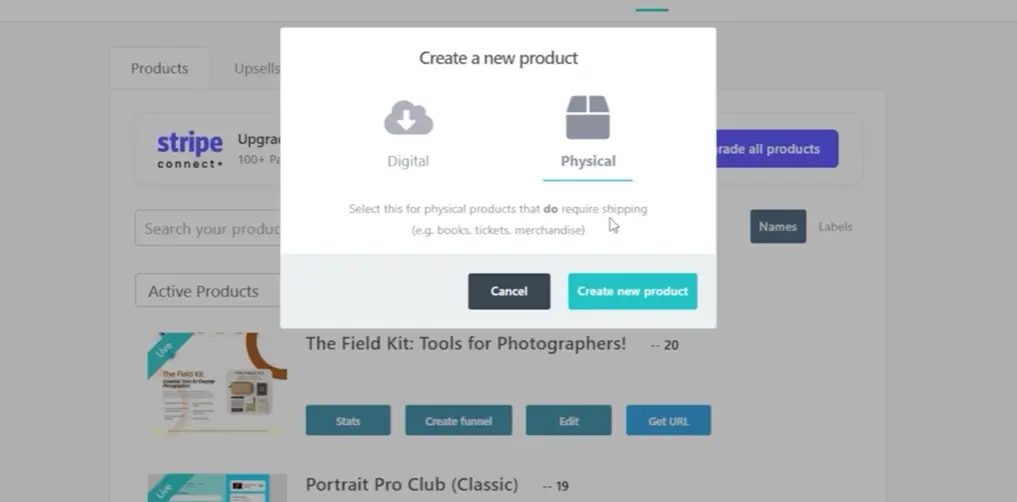
Already have a product set up? No problem. You can switch the product type at any time from the bottom-left corner of your product’s first settings tab.
Setting up your shipping options
Once your physical product is created, head to the Fulfillment tab, then click into the Shipping sub-tab. This is where all your shipping options live.
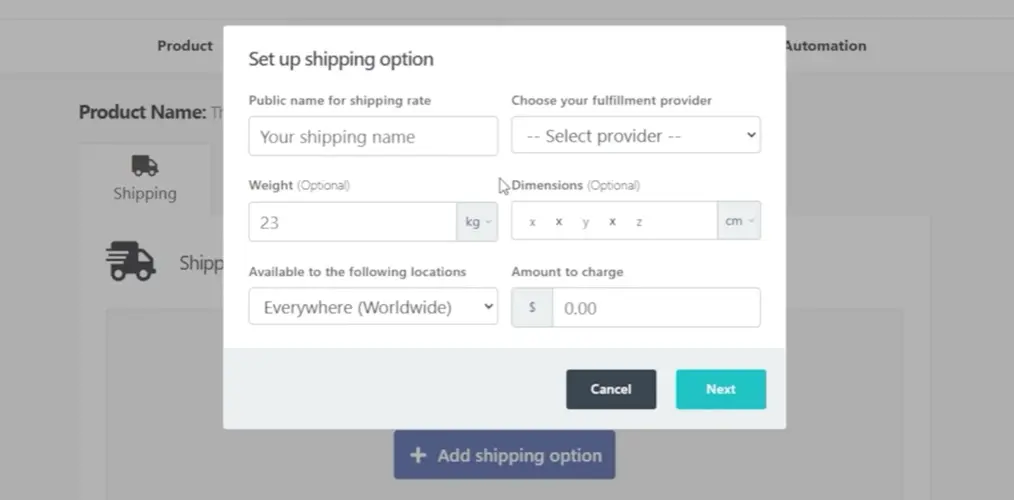
Click “Add shipping” option to open the shipping setup modal. Here’s what you’ll configure:
- Public name for shipping rate – this is what customers see at checkout and on their invoice. Keep it clear and simple, like “Standard Shipping” or “Overnight Courier.”
- Fulfillment provider – choose from Manual (if you’re shipping yourself) or any connected service like Shippo, ShipStation, Printful, Kunaki, Lulu, or Vervante.
- Weight and dimensions – optional, but recommended. This information is passed directly to your fulfillment provider for accurate rate calculations.
- Amount to charge – the flat fee your customer pays for this shipping option.
- Available locations – set which countries or regions this option applies to. Customers outside those regions simply won’t see it at checkout.
👀➡️ RELATED READING | ‘Stop Chasing Customers for Order Details: Instead, Use Custom Fields to Automate It at Checkout‘
Flat-rate vs. dynamic shipping rates
Flat-rate shipping
Flat-rate is the simplest option. Select Manual as your provider, set your charge amount, and you’re done. You can create as many flat-rate options as you need – for example, one for domestic customers and another for international orders.
Dynamic real-time shipping rates
If you use Shippo or ShipStation, you can unlock real-time dynamic shipping rates – calculated live based on your customer’s address and your product’s weight and dimensions. That means you never under-charge (or over-charge) on shipping.
To enable it:
- Select Shippo or ShipStation as your provider
- Tick the “Use dynamic shipping rates” checkbox
- Set a fallback amount – this is the rate shown if ThriveCart can’t reach the provider’s API for any reason
At checkout, customers will see a prompt to enter their address first. Once they do, live rates load in automatically within a few seconds.
👀➡️ YOU MIGHT ALSO LIKE | ‘10 Tips to Increase Conversion Rate With ThriveCart‘
Regional shipping control
ThriveCart gives you full control over which shipping options appear based on your customers’ locations. You can build out a complete setup, for example:
- A flat-rate option for U.S. customers
- A separate flat rate for UK customers
- Dynamic Shippo rates for everyone else
Important: every region your customers can order from must have at least one shipping option. If a customer’s location isn’t covered, they won’t be able to complete the checkout.
Advanced shipping rules
ThriveCart’s shipping options go beyond simple rates. You can fine-tune exactly when each option appears:
- Quantity-based rates – charge a different rate when a customer buys two or more items
- Bump-triggered rates – set rates that only apply when a customer selects a bump offer
- Subscription and payment plan rebills – charge shipping on each rebill, and even send a different product or pack with each payment (great for monthly coaching program kits)
You can also assign an internal Shipping Label ID if your provider needs it to track orders linked to a specific rate.
👀➡️ HANDPICKED FOR YOU | ‘The Skills Crisis Gold Rush: 4 Ways to Turn Your Expertise Into a 6-Figure Education Empire‘
Physical bumps and upsells
ThriveCart gives you flexibility when combining physical and digital products in a funnel:
- Physical main product + physical bump – ThriveCart collects one shipping address and applies the right rates for each item.
- Digital main product + physical bump – customers only need to enter shipping details if they accept the physical bump offer.
- Physical upsells/downsells – the shipping address is collected on the upsell page itself, but only if it wasn’t already captured at the main checkout.
Each physical bump and upsell has its own shipping options configured independently, so you stay in full control at every stage of your funnel.
Note: the multiple bumps feature (available on Pro+) supports digital products only. If you need a physical bump, you’ll be limited to a single bump on that product.
👀➡️ JUST FOR YOU | ‘8 Cross-Selling and Upselling Strategies That Maximize Revenue in ThriveCart‘
What your customers experience at checkout
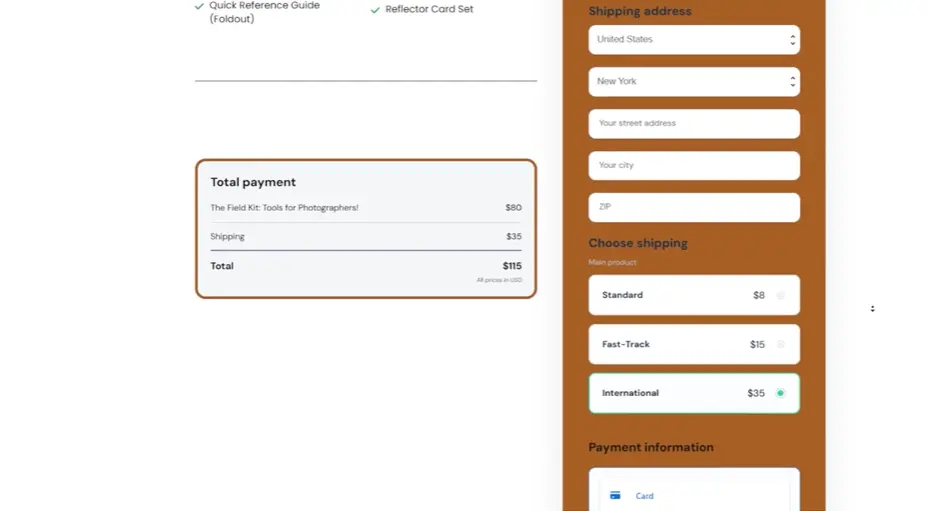
Your customers get a clean, professional checkout experience. Here’s what happens on their end:
- A shipping address field appears alongside billing details
- Available shipping options for their location load automatically once they enter their address
- If you’re using dynamic rates, a short loading spinner appears while rates are fetched from Shippo or ShipStation – typically taking just a few seconds
- The correct rate is displayed clearly before they complete their purchase
No confusion. No missing information. Just a smooth experience that builds trust from the very first purchase.
👀➡️ EXPLORE MORE | ‘How to Sell Digital Products in 2026: A Step-by-Step Guide‘
Ready to start selling physical products?
ThriveCart makes it straightforward to sell anything that ships – books, supplements, merch, coaching kits, and more – with a checkout experience that handles the hard work for you. Less manual effort, fewer errors, and a seamless journey for every customer.
Head to your ThriveCart dashboard, create your product, and start building out your shipping options today. Or check out our helpdesk article for more info. Not a ThriveCart customer yet? Join today and start selling physical products the smart way.
