

Deanna has a problem.
The Atlanta-based artist had built a successful coaching business helping other artists and makers turn their creative passions into profitable businesses. Her one-on-one coaching packages were in high demand, and her clients valued her practical, no-nonsense approach to marketing and growth.
But every time someone booked a session, the same frustrating dance began.
After the payment went through, Deanna would send a welcome email asking for her new client’s website URL, Instagram handle, and any other social media profiles they wanted help with. Then she’d wait. Some clients responded within hours. Others took days. A few never sent the information at all, forcing Deanna to track them down right before their scheduled call.
The delays meant she couldn’t review their online presence beforehand. She’d show up to coaching calls without context. And instead of diving straight into strategy, she’d spend the first 15 minutes of paid time just getting oriented.
If only she’d known that her checkout platform could handle all of this automatically…
Watch this short video to see how custom checkout field could help Deanna – and you – and keep reading for the full version of the article. 👇
Key takeaways
- Custom checkout fields let you collect essential client information at the point of sale – no follow-up emails or messages required
- Each additional field creates checkout friction, so only collect what you genuinely need for service delivery
- Strategic use of custom fields improves service delivery, reduces prep time, and creates a better client experience
- ThriveCart allows up to four custom text fields per product, all viewable in invoices, integrations, and reports
👀➡️ YOU MIGHT ALSO LIKE | ‘Win Back Customers on Autopilot: How to Recover Lost Sales With Abandoned Cart Emails‘
When do you actually need custom checkout fields?
Your checkout already collects the basics – name, email, and payment details. But sometimes you need more.
The key question isn’t how to add a custom field. It’s knowing when you actually need one.
Not every product requires extra information. And every additional field you add is one more thing standing between your customer and that all-important buy button.
Custom fields make the most sense when delivering the service depends on information only the client can provide.
Real-world examples where custom fields shine
Coaching and consulting services:
- Client website URLs for review before calls
- Social media handles for adding to private communities
- Specific goals or challenges they want to address
- Current tools or platforms they’re using
Event tickets and conferences:
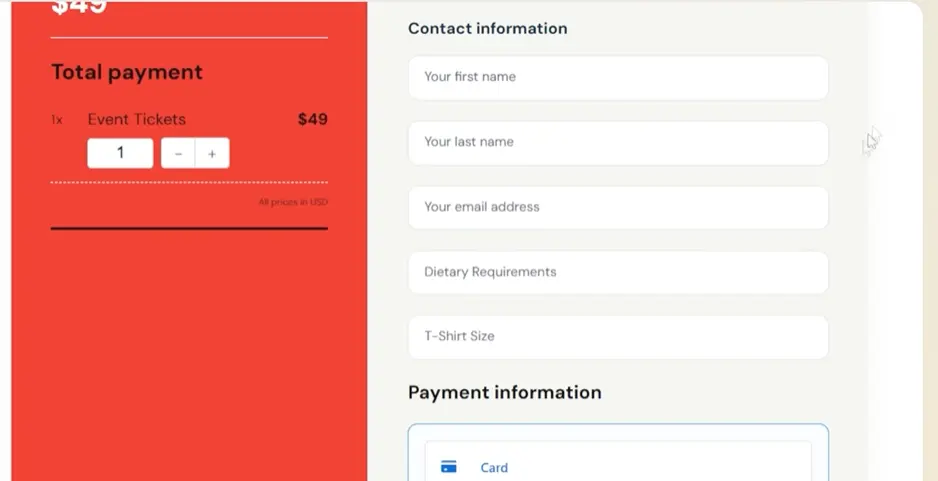
- Dietary requirements for catering
- Tshirt sizes for conference swag packages
- Emergency contact information
Physical products:
- Delivery instructions (apartment numbers, gate codes, courier notes)
- Gift messages or personalization details
- Product customization choices (colors, sizes, engraving text, etc.)
Digital services:
- Company names for B2B transactions
- Team size for group programs
- Industry or niche for tailored content
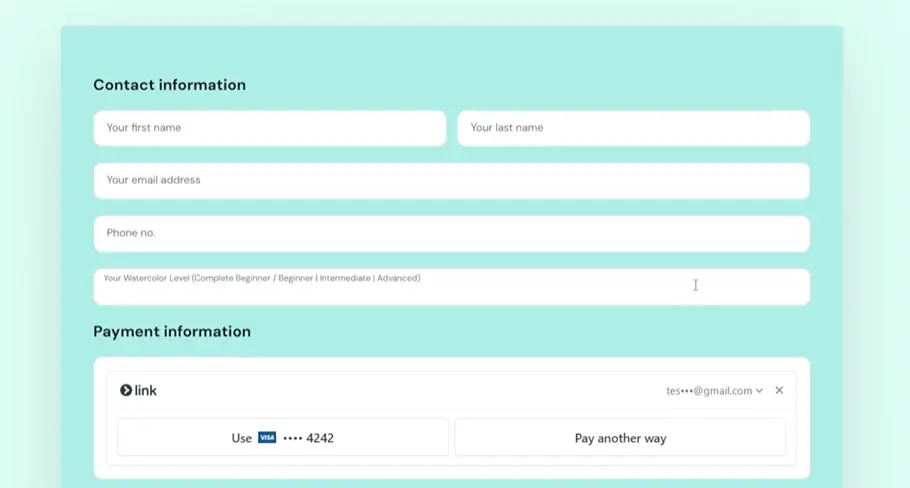
For coaches like Deanna, custom fields would have been perfect for collecting website URLs and social profiles right when clients booked – giving her time to review their online presence before the call and show up fully prepared.
👀➡️ MORE FROM THE BLOG | ‘How to Build a High-Converting Sales Funnel in ThriveCart (Quick Step-By-Step Guide)‘
How to set up custom fields in ThriveCart
Adding custom fields to your ThriveCart checkout is straightforward:
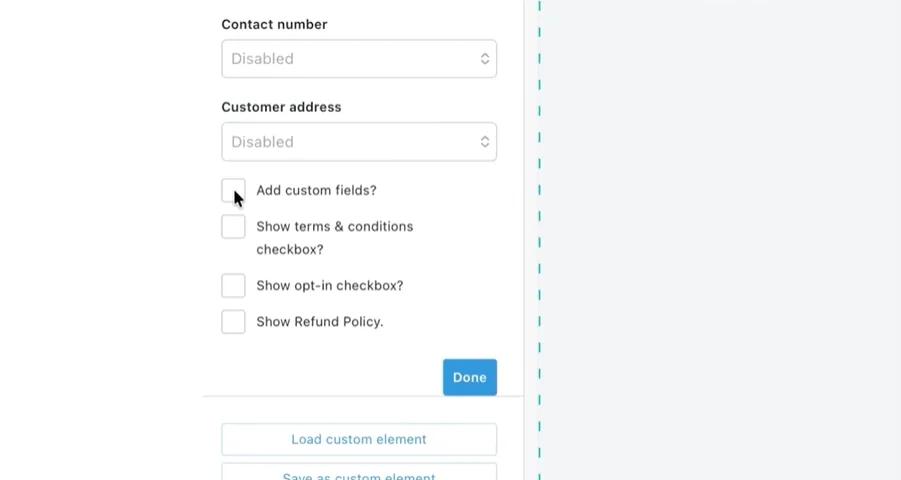
- Navigate to your product’s Checkout > Design tab
- Click Launch Editor
- Click on the contact information element on your checkout
- Check the box to add custom fields
- Click Setup custom fields
For each custom field, you’ll configure:
Field ID: The internal identifier for this data (example: “website_url” or “instagram_handle”). This maps to integrations and autoresponders, so use underscores instead of spaces.
Label: What customers see on the checkout page (example: “Enter your website URL” or “Your Instagram handle (include the @)”).
Include in receipt: Toggle whether this information appears in the client’s receipt for their reference.
You can add up to four custom fields per product. Each one will be required by default, which means clients cannot complete their purchase without filling it in.
👀➡️ JUST FOR YOU | ‘10 Best Practices for Building a Creator Community That People Actually Stick Around For‘
The conversion-friendly rule for custom fields
Remember, only make something required if you can’t deliver without it. This is the golden rule of checkout optimization.
Every field adds potential friction. While ThriveCart makes it easy to collect additional information, that doesn’t mean you should collect everything you might want. Focus on what you absolutely must have.
Ask yourself:
- Can I deliver this service without this information?
- Will the client experience suffer if I don’t collect this now?
- Could I gather this information after purchase instead?
If the answers are no, yes, and no – add the field. If you’re unsure, leave it out. The fewer fields on your checkout, the less friction. And less friction means more customers make it to the end.
Where your custom field data appears
Once an order is placed, the custom field information is accessible in multiple places:
- Transaction invoices in your ThriveCart dashboard
- Sales notifications you receive via email
- Client receipts (if you enabled this option)
- Supported integrations, including Infusionsoft, Drip, Google Sheets, Zapier, and webhooks
- Transaction exports when you download your sales data
Everything you need is in one place, exactly when you need it.
👀➡️ HELPFUL ADVICE FOR DIGITAL SELLERS | ‘How Smart Creators Automate Their Email List Growth – Without Lifting a Finger‘
Why this matters for your business
When you collect the right information at the right time, several things happen:
📦 Better service delivery: Show up to coaching calls fully prepared with context about your client’s business.
🤓 Reduced prep time: No waiting for client replies or scrambling to gather information before calls.
💡 Better client experience: Clients appreciate being asked once, at checkout, rather than multiple times via email. They also notice when you’ve done your homework.
👔 Professional impression: Starting calls with “I reviewed your Instagram and noticed…” immediately demonstrates you’ve done the pre-work for the call and are invested in the client’s needs.
📊 Cleaner data: Information collected during the buying process is more accurate than details gathered through follow-up.
For Deanna’s coaching business, implementing custom fields would have meant:
- No more post-sale email chains requesting website and social links
- Time to review client accounts before every scheduled call
- Fewer wasted minutes at the start of paid sessions
- Better-prepared coaching that delivers more value from minute one
- Clients who feel seen and understood from the very first interaction
- Reduced stress for you, since you’re not constantly chasing after key information
👀➡️ READ A SUCCESS STORY | ‘The Freedom Formula: How Rob Cornish Turned Redundancy Into $41,000 a Month in Recurring Income‘
Start collecting smarter today
Custom checkout fields are one of those quiet features that can transform how you run your business.
They’re not flashy. They don’t promise overnight revenue increases. But they help you solve the kind of operational problems that waste your time and diminish the quality of your service delivery.
If you’re selling coaching, consulting, or any service that requires client-specific information to deliver value, custom fields deserve a spot in your checkout.
Ready to streamline your checkout and collect exactly what you need? ThriveCart’s custom fields feature is included in all plans, giving you the power to gather essential client information without adding unnecessary friction. Check out ThriveCart’s many revenue optimization-focused features.
