

The ThriveCart team has been busy shipping new features. This release covers a new look for your dashboard, smarter email validation at checkout, better invoice management, and a solid batch of ThriveAcademy improvements, including easier course organization.
A fresh new look for your ThriveCart dashboard
You’ll notice something different when you log in. ThriveCart is rolling out a brand-new design, and this release is the first phase of it.
The most visible change: the main navigation has moved from the top of the screen to the left-hand side, giving you a cleaner, more spacious workspace to manage your products, funnels, and reports.
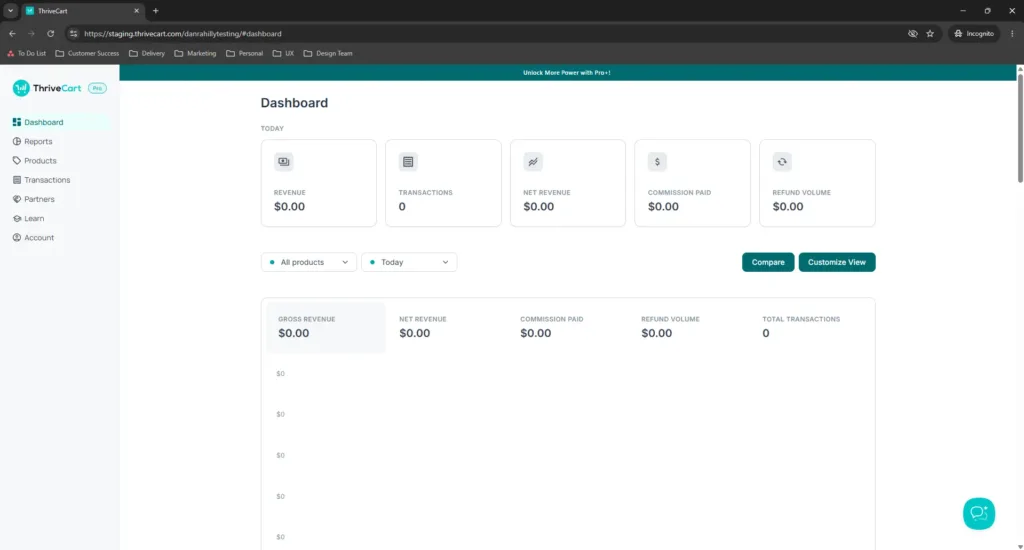
This is a gradual rollout, so you may see a mix of the updated and existing styles as you navigate around. Everything works exactly as it should – it’s purely a visual update happening in stages. The full redesign is on the way, and we’ll keep you posted as more areas get updated.
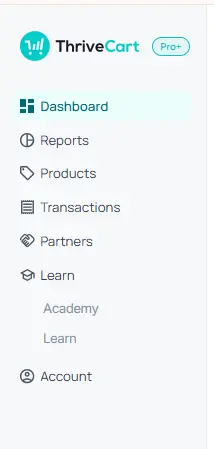
For ThriveAcademy users, you’ll also notice the new dashboard lets you easily toggle between the new LMS (Academy) and the legacy platform (Learn). To access it, simply click “Learn” from the dashboard menu options.
ThriveAcademy: easier course organization and a more consistent experience
Clearer course selection when adding students
If you run multiple Academy courses, finding the right one in a dropdown has previously involved a lot of scrolling. That’s been improved.
The course selector now organizes your courses into two clear groups – Academy Communities (including integrated courses) and Academy (courses only) – so when you’re adding a student or setting up access, you can immediately see what’s what and pick the right course without second-guessing yourself.
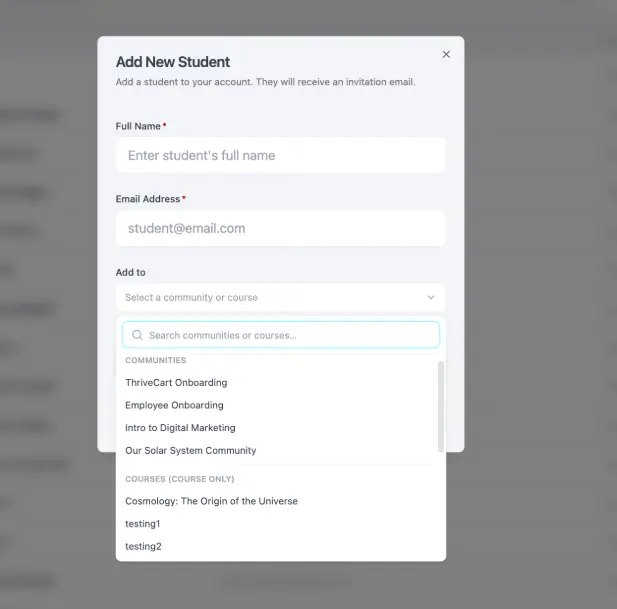
This change saves real time, especially as your course library grows.
A more consistent course experience for your students
A significant set of visual and layout improvements has been made to bring the new course editor in line with how things looked in the legacy editor. This covers fonts, sidebars, HTML embeds, avatar display, and layout consistency – so what you see as a creator now matches what your students actually see. The gap between the builder view and the student view has been closed.
We’ve also been making steady refinements across communities and courses.
- Students can now be invited to communities the moment they enroll – community invitations go out reliably for all new students, with no delays or errors.
- Communities appear correctly on course pages – if you’ve linked a community to a course, it now shows up in the right place for students every time.
- Full admin functionality is restored for creator management – all creator admin actions now work correctly across both staging and production environments.
- Pasted content and link previews in community posts are fully editable – text pasted into community posts stays editable, and link previews load correctly every time.
- The community post editor now handles long posts and media uploads smoothly – you can scroll freely when writing longer posts, and media file attachments upload without issue.
- Custom community URL slugs now save reliably during setup – the Save URL button during community setup works as expected, so your community’s web address is locked in first time.
- Students can now see and access all communities they’ve been given access to – community access is displayed correctly in the student view, so no one gets locked out of a space they should be in.
- Font style updates now apply across your entire course, not just the title – when you change a font in the course editor, the change sticks throughout all of your content.
- Course discussions work more reliably – authors are correctly identified in posts, links can be easily added, access permissions are properly enforced, and students see clear, friendly messages if something goes wrong.
👀➡️ JUST FOR YOU | ‘How to Price Your Online Course (And Stop Leaving Money on the Table)‘
Send a customer’s complete invoice history in one step
When a customer asks for all of their invoices for tax or accounting purposes, the previous process meant working through the Invoice Download tool with date-based filters – not ideal if you didn’t know exactly when they first purchased.
The Invoice Download tool now includes an “All time” option. Filter by a specific customer or product, select All time, and the system compiles and emails you the complete invoice history in one go. It’s a meaningful time-saver for vendors with long-term customers and high transaction volumes.
Clearer financial reporting for reserve and hold amounts
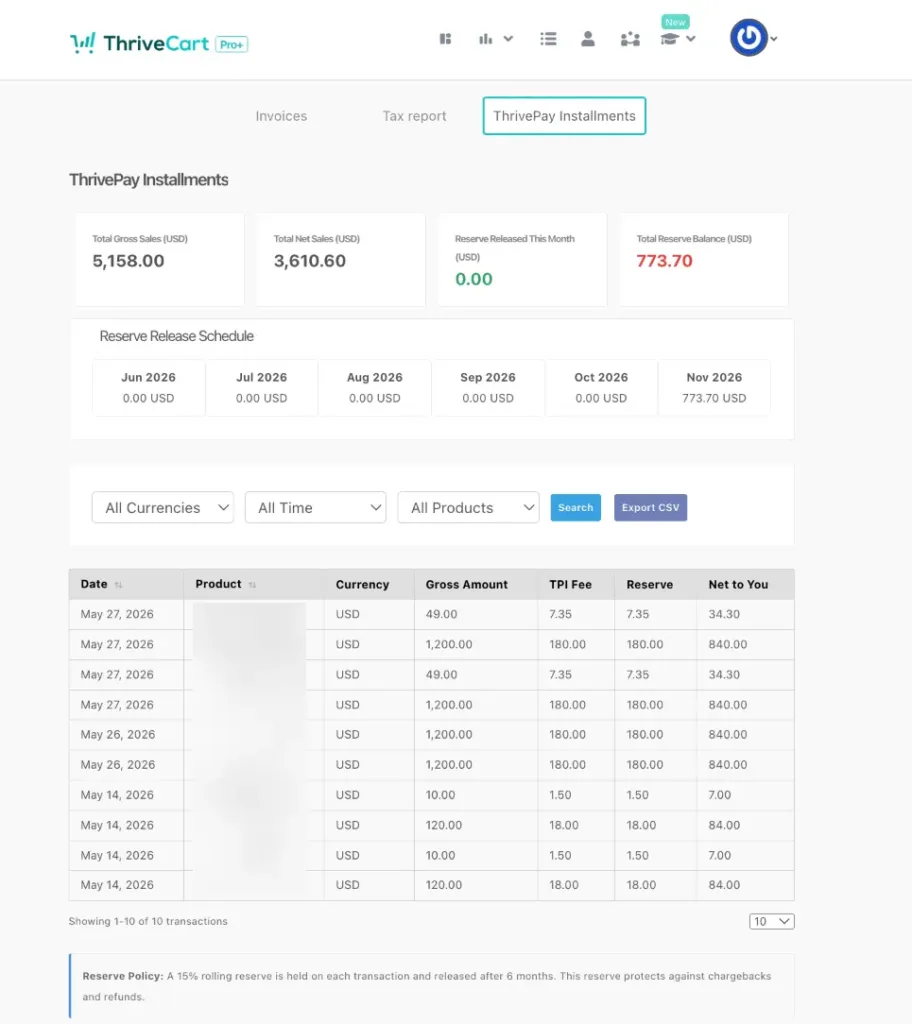
For merchants using ThrivePay Installments, your reserve and hold amounts – the funds temporarily held back as part of payment processing – are now clearly visible in your Accounting Reports.
A new Reserve tab shows:
- New reserve added – what’s been held from recent sales
- Reserve released – what’s been unlocked and returned to you
- Total held – the full balance currently under hold
Individual transactions also now display the gross amount, fee, and reserve as separate line items, so you have complete transparency over exactly where your money is at any given time.
→ For more info, read the technical support guide to ThrivePay Installments